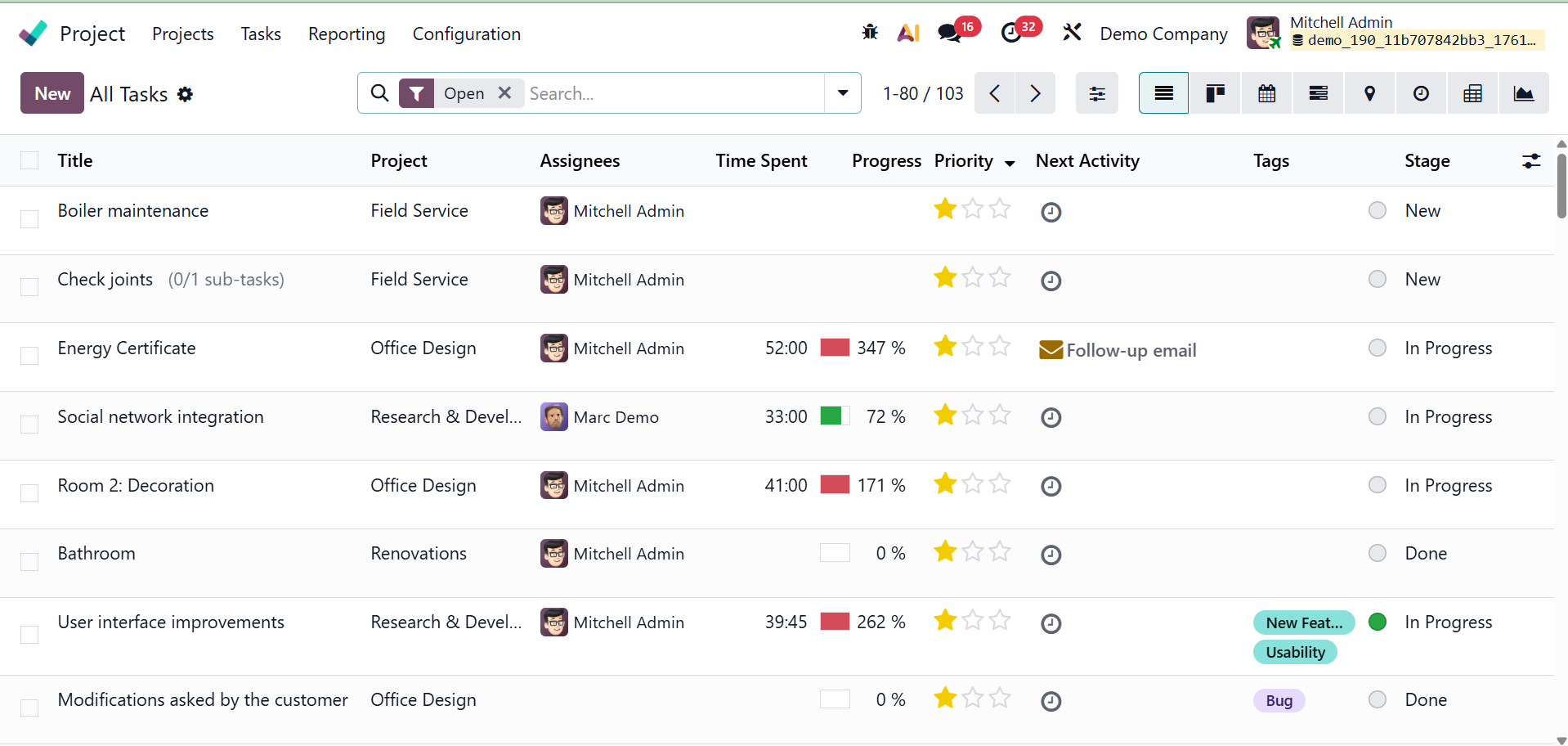
Project – Tasks
Tasks
You can view the task's progress and remaining hours on this page by selecting the My Task option under the task option.
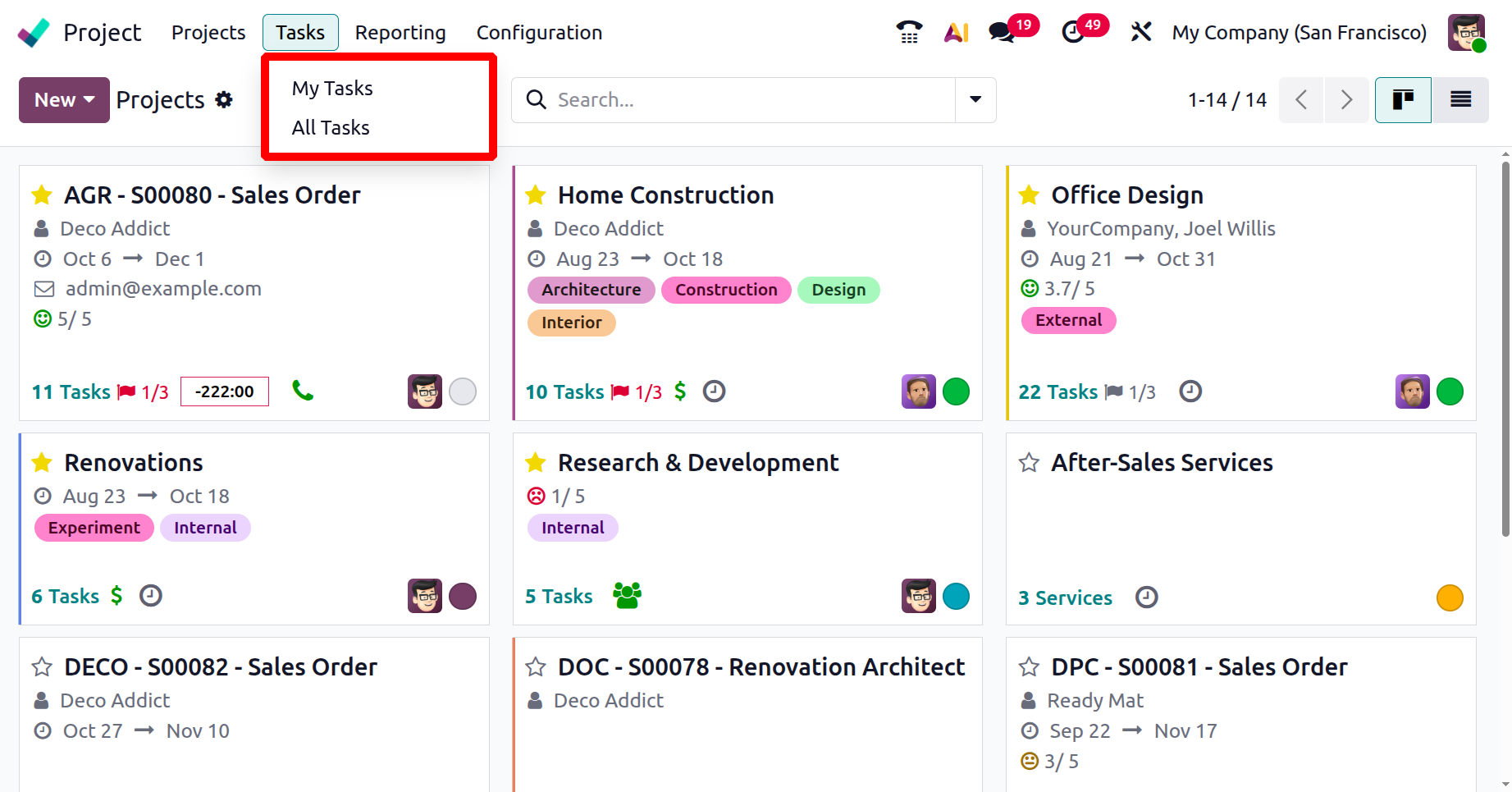

1.1 My Task
This is how the My Task page will look in the picture below. Every assignment you've been assigned will be tracked and recorded via the My Tasks option in the Project module. These activities can be managed with the use of the Activity, Map, Pivot, Gantt, List, Kanban, Calendar, and Activity views.
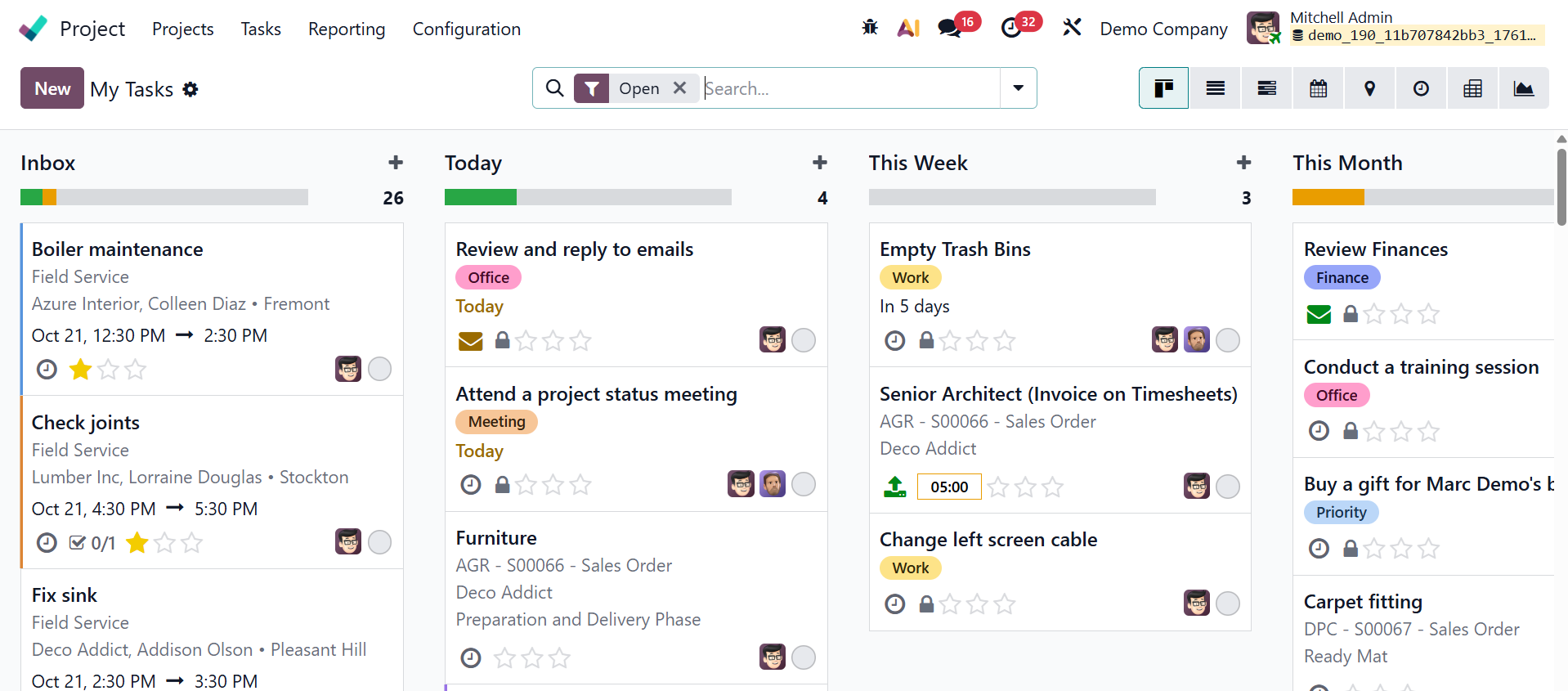

All of the tasks assigned to the logged-in user are displayed in My Tasks. Since Mitchell Admin is the one that logs in, they are the appointed person for all duties here. The user can add new tasks by clicking the New button. As we mentioned earlier, the task creation form is the same.
1.2 All Tasks
The 'All Task' menu shows all of the tasks that have been created. All of the jobs that have been allocated to each user are listed under this All Task. The New button can also be used to add new tasks to an existing project.