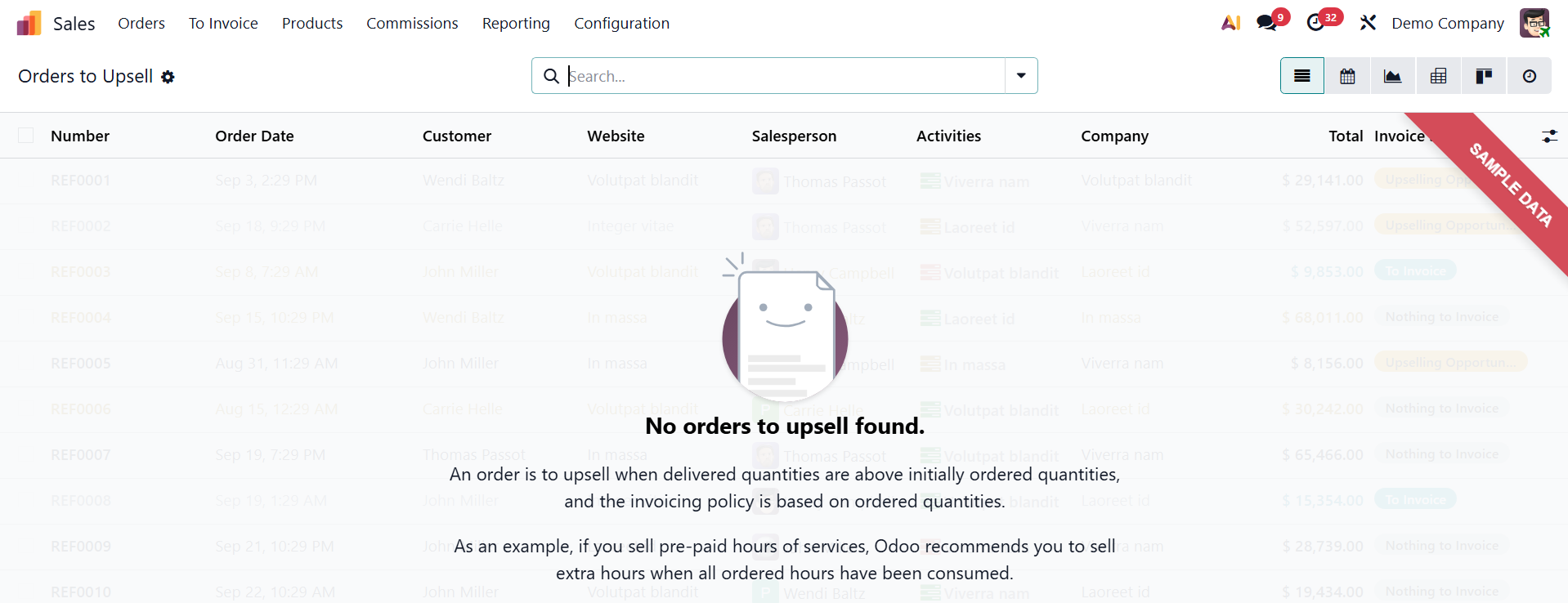
Sales – To Invoice
To Invoice
Under the To Invoice menu, you have options like orders to invoice and orders to upsell.
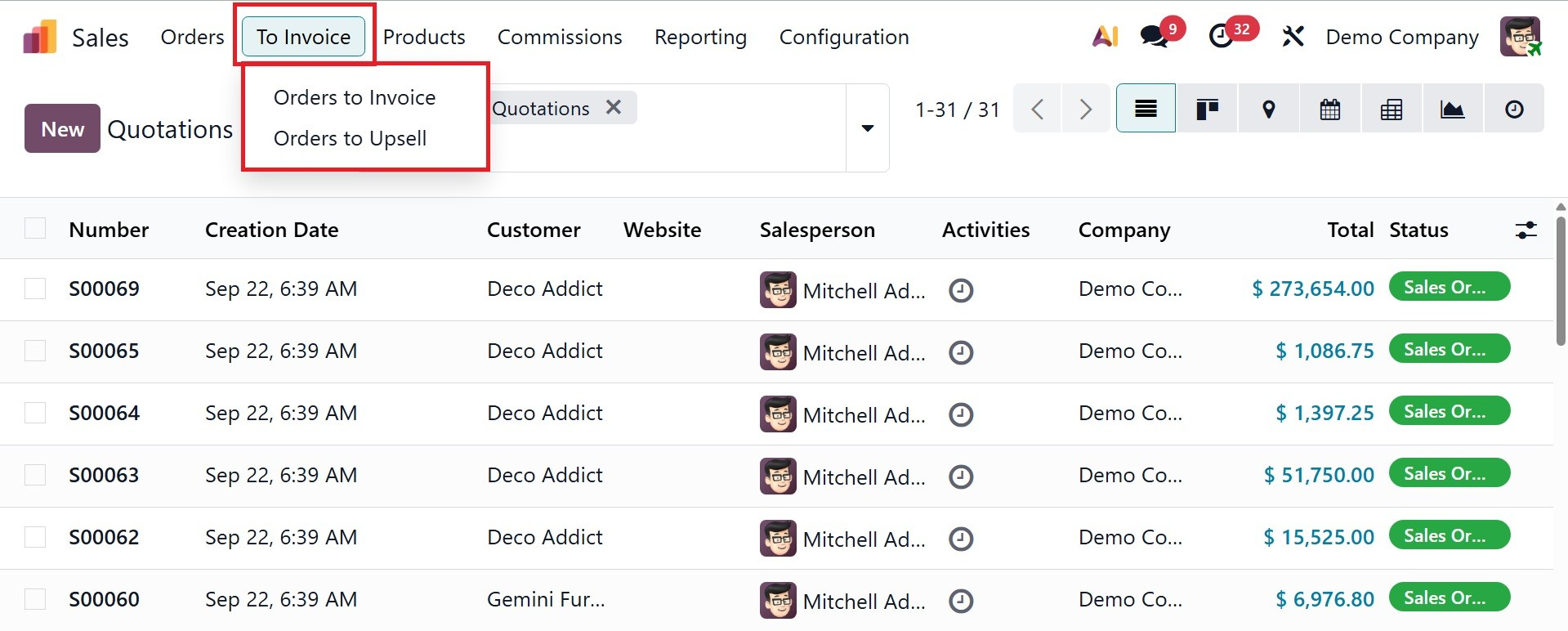
- Orders to invoice: Depending on the product's invoicing policy (such as Invoice on Ordered Quantity or Invoice on Delivered Quantity), this option displays confirmed sales orders that have either been fully or partially delivered.
- Orders to Upsell:When the customer receives more than what was initially ordered (for instance, if ordered quantities are invoiced and additional quantities were delivered beyond the verified sales order), this option displays the sales order.
1.1 Orders to Invoice
On selecting the option, you will get the list of orders to invoice, as in the screenshot below.
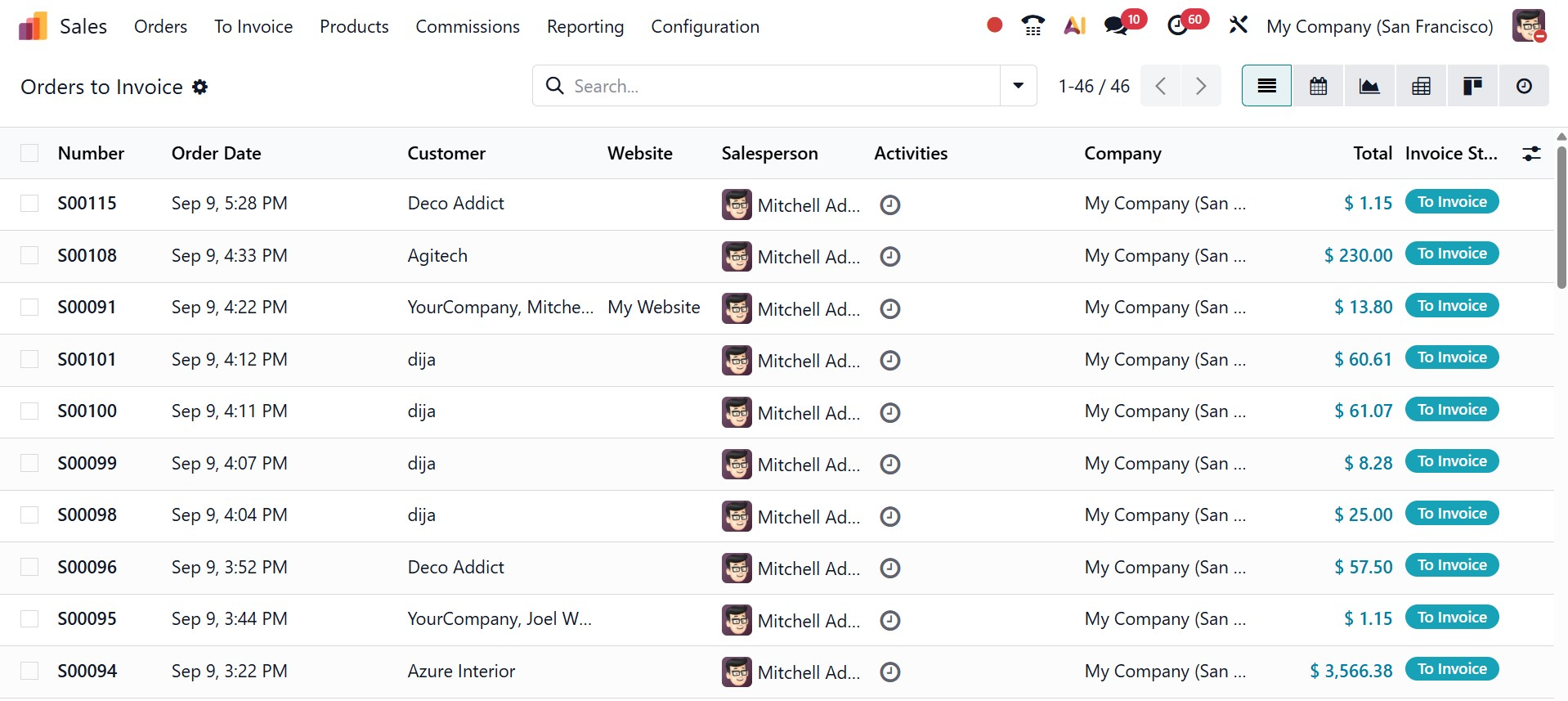
Here, you will get the details like number, order date, customer, website, salesperson, activities, company, total, and invoice status, respectively.
1.2 Orders to Upsell
Since the billing procedure is based on ordered quantities, an order is considered to upsell when the delivered amounts exceed the initially ordered quantities.
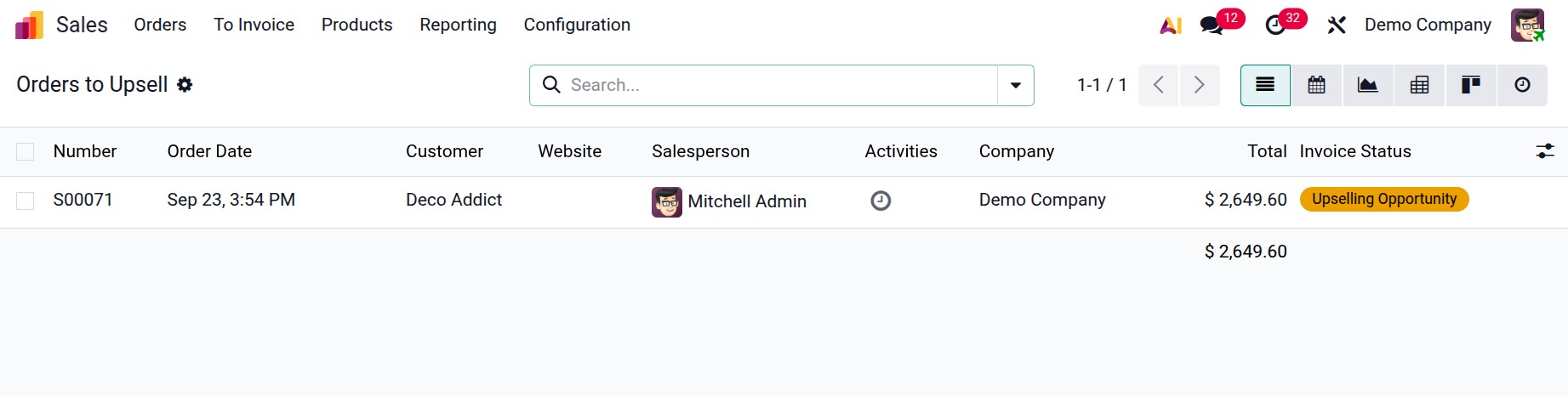
Now, open the created order to upsell and can see that the delivered quantity is exceeding the ordered quantity and invoiced quantity.
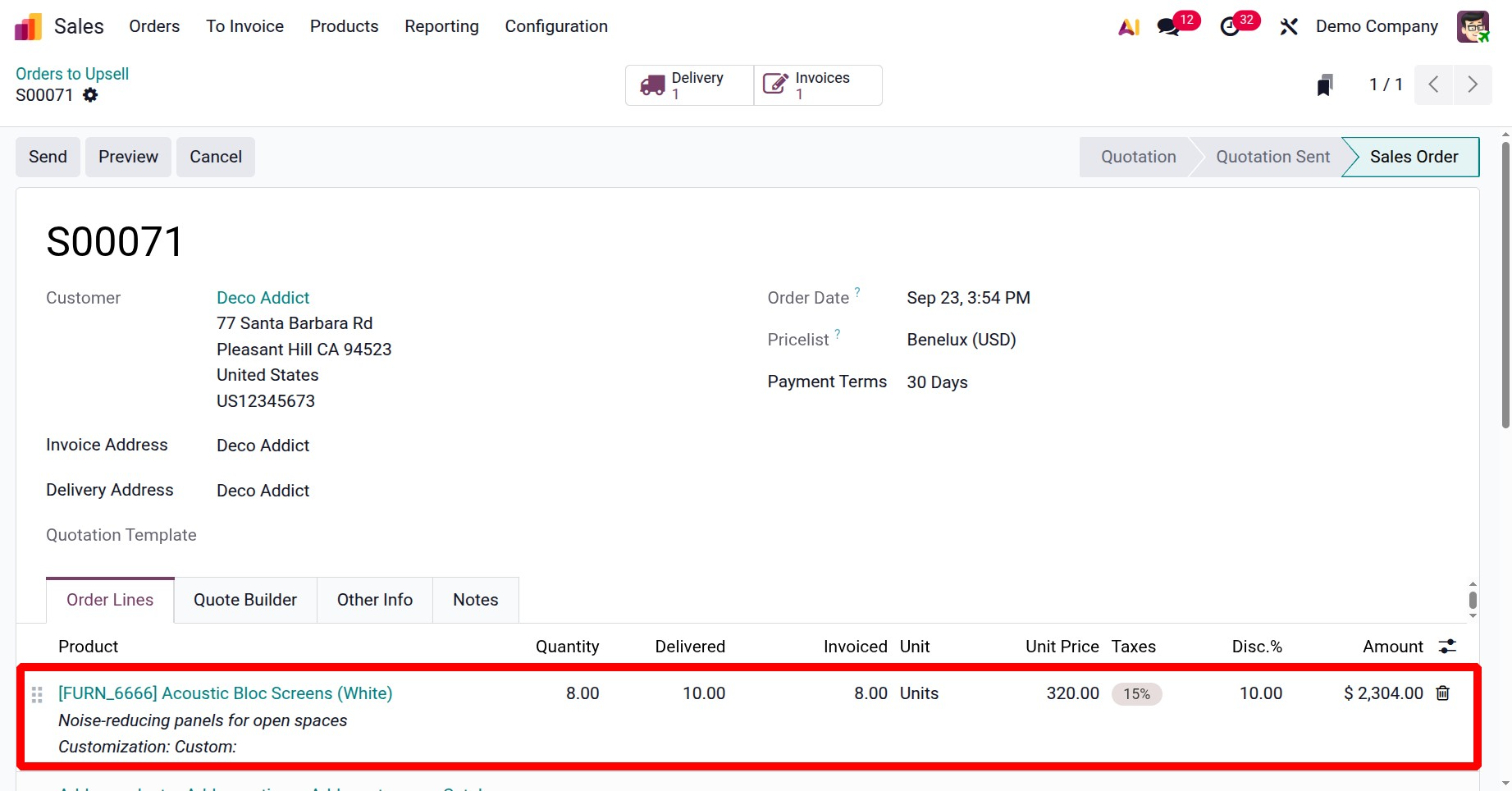
Here, if you want to create the invoice for the remaining 2 quantities, then change the ordered quantity as 10.
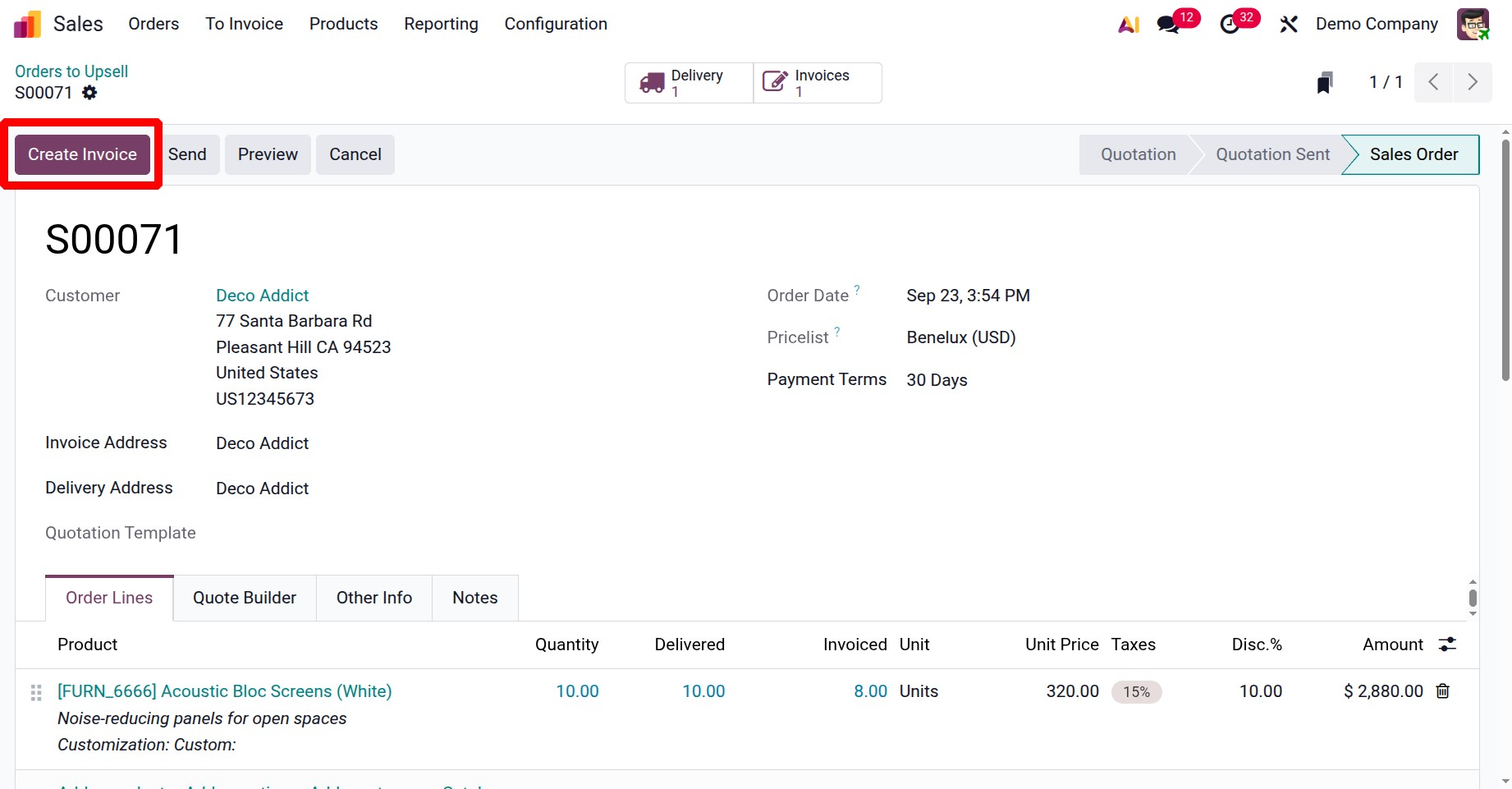
Click on the create invoice button and create an invoice for the remaining quantities. Users can see that the invoice creation is completed. And there is nothing to upsell.